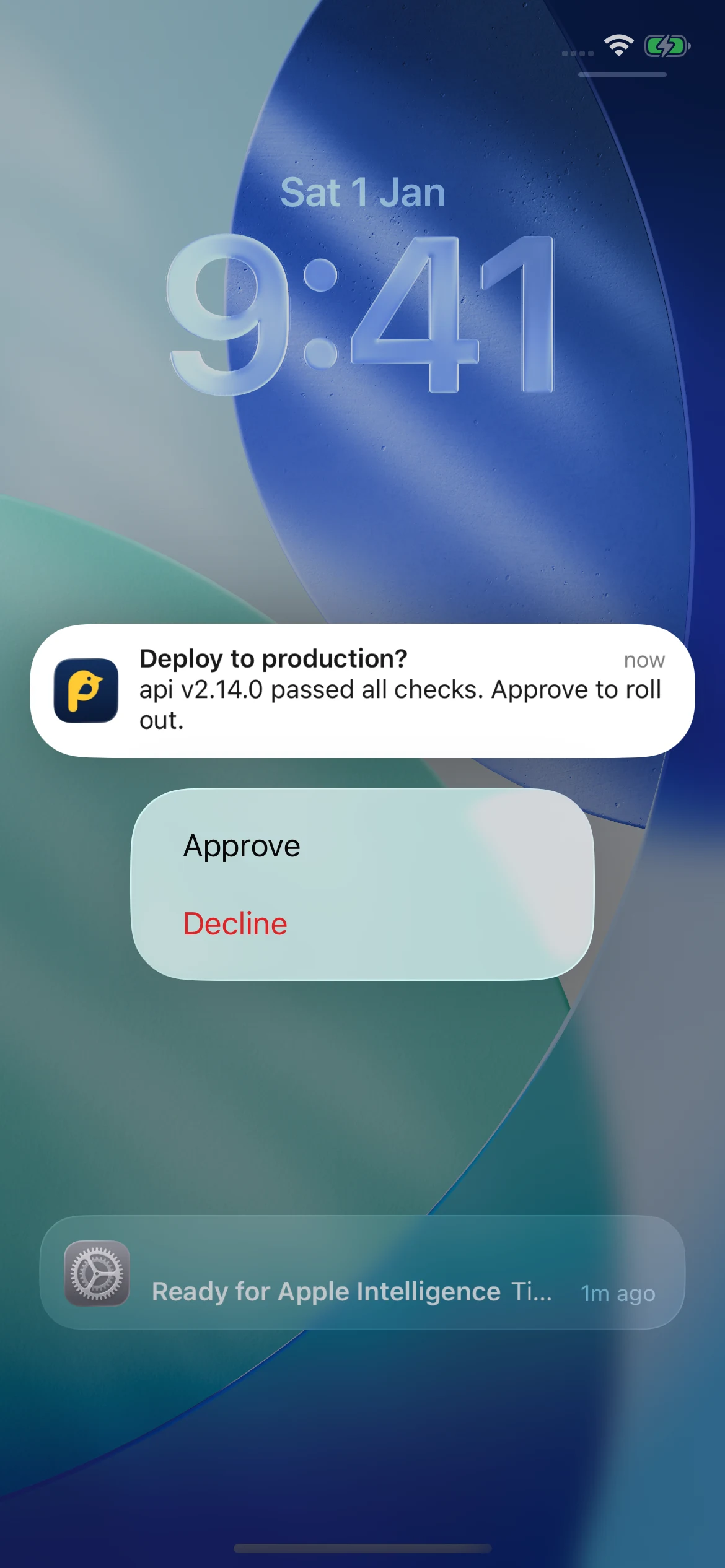
Your script waits. You approve from the Lock Screen.
A deploy, migration, cron job or CI run sends one request. You tap Approve or Decline on your iPhone, and the script reads your answer and carries on or stops.
curl -X POST \
  'https://api.pinglark.app/v1/send/{credential}' \
  -H 'Content-Type: application/json' \
  -d '{
    "title": "Deploy to production?",
    "message": "api v2.14.0 passed all checks.",
    "actions": "approve_decline"
}'Pinglark for iPhone is coming soon.
A little JSON.
A ping on your phone.
Create an endpoint in Pinglark, copy its secret send URL, and add a request to your script. If it can make an HTTP request, it can send a ping.
curl -X POST \
  'https://api.pinglark.app/v1/send/{credential}' \
  -H 'Content-Type: application/json' \
  -d '{
    "title": "Build finished",
    "message": "All tests passed. Artifacts are ready."
}'Build finished
All tests passed. Artifacts are ready.
Acknowledge
Illustrative preview. No notification is sent.
Replace {credential} with your endpoint
credential.
Keep the full send URL secret.
A place for every
"what happened?"
Check a build from the sofa. Find the alert you swiped away. Answer the one that needs you.
Find that ping again.
Your received notifications stay in a searchable inbox on your iPhone. Filter by endpoint to find what you need. Keep builds, home sensors, and personal scripts easy to tell apart.
Reply when it needs you.
Add Acknowledge, Yes/No, or Approve/Decline buttons. Answer from a notification or open it in the app. Pinglark records your reply.
How replies work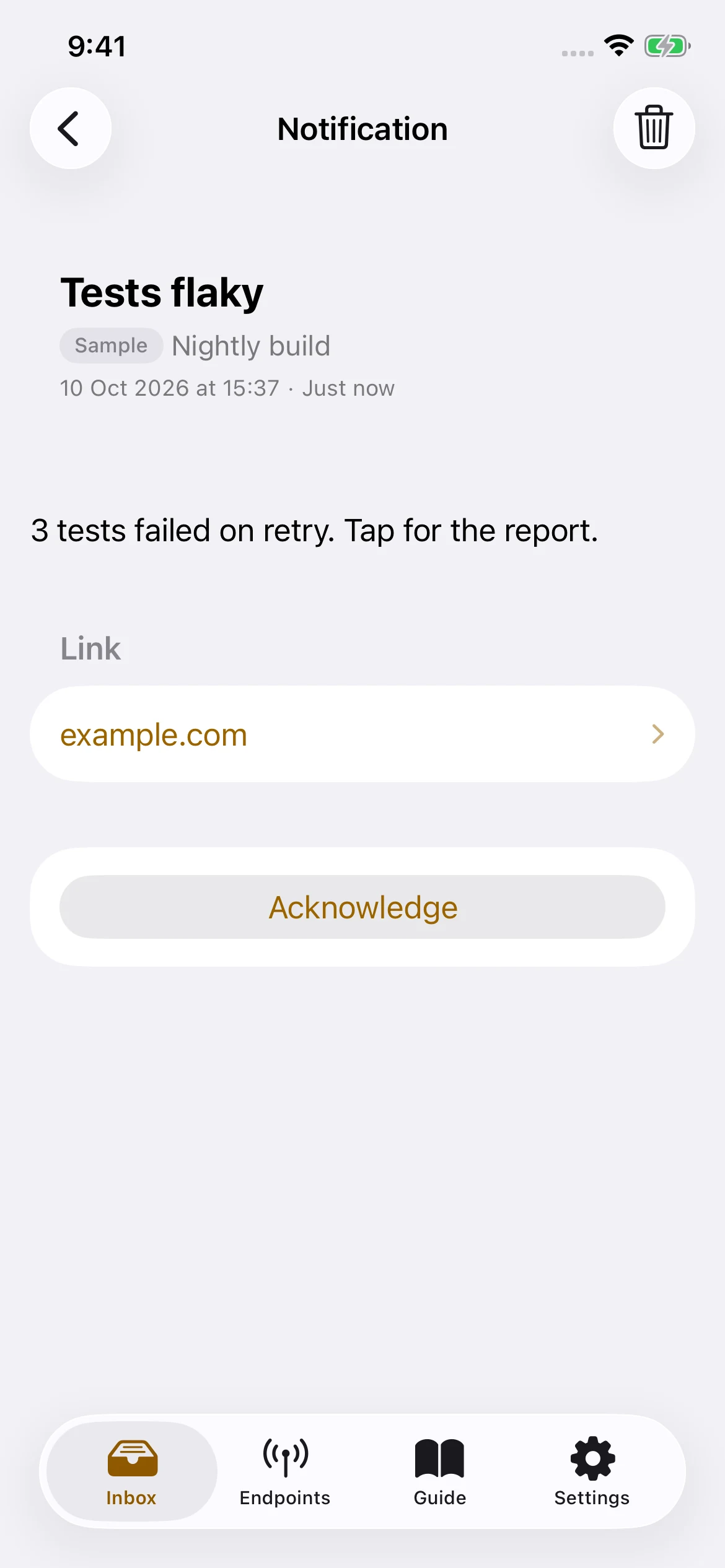
Watch a long job
from the Lock Screen.
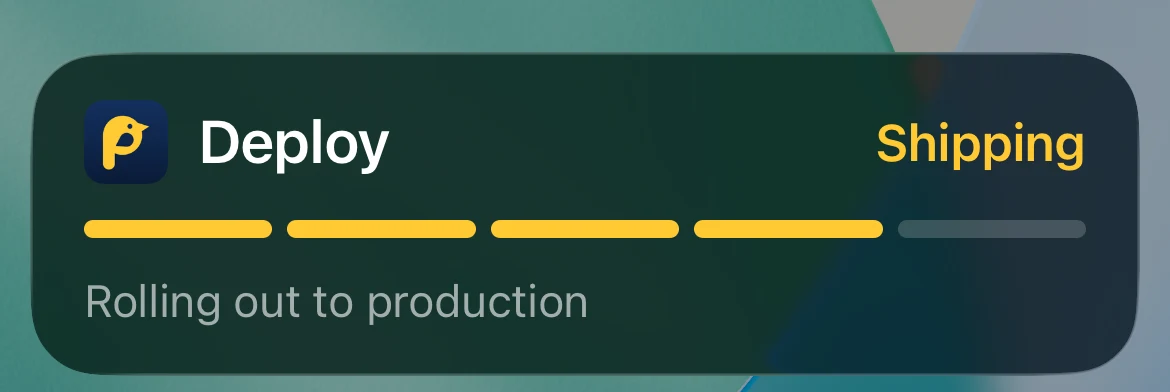
Builds, deploys and backups take a while. Keep one card up to date instead of sending a ping for every step.
One request per step.
Post to your endpoint’s activities URL with an activity ID, a status and how many steps are done. Pinglark starts a Live Activity on your iPhone and updates it in place, on the Lock Screen and in the Dynamic Island.
Green when it ships. Red when it doesn’t.
End the activity with success or failure. The last state stays on the Lock Screen, so you can see how the job went at a glance.
How Live Activities workSmall app.
Clear expectations.
Do I need an account?
No account is required for core use. Create endpoints on your iPhone and keep your notification inbox there. An optional account lets you manage your endpoints and connected phones on the website with a passwordless email sign-in.
Does "accepted" mean delivered?
A 202 response means the service accepted your
request. Apple controls notification delivery. Pinglark records
the notifications it observes, so the inbox isn't a guaranteed
record of every send.
Read about delivery.
What happens when I reply?
Pinglark records your answer, and the script that sent the notification can read it with the same send key. It can check later or wait up to 60 seconds for you to answer, then carry on or stop. Pinglark never runs anything for you. Read answers from a script.
What does Pinglark store?
Your phone's push token, your endpoints and a hash of each send key. Notification content and answers are deleted from the server after 30 days. Read the privacy policy.
Will links or images open on their own?
Links need your tap and confirmation. Images in notification details load only when you choose Load image.
Your next script
could use a little bird.
Pinglark for iPhone. Public TestFlight and App Store links are coming soon.
Get to know the API